The Undo Shelf: put back what a cleanup removed
- Yes, for 7 days. Anything SiftMac removes that can’t come back on its own, like old downloads, apps, duplicates and the Trash, moves onto the Undo Shelf first. Put back returns it to the folder it came from.
- What it costs you: nothing extra, but that space is only freed when the cleanup’s hold ends, or sooner if you empty the shelf yourself.
- What skips the shelf: caches, logs and temp files, which come back by themselves, build folders, which your next build makes again, and downloaded AI models and macOS installers, which you can download again.
1. How the Undo Shelf works
When you press Clean up, SiftMac splits what you picked in two. Items that rebuild by themselves are deleted straight away. Everything else is moved, not deleted, into a folder of SiftMac’s own:
~/Library/Application Support/SiftMac/Undo ShelfEach cleanup becomes one entry there, named by its date and time. Inside it, an items folder holds the moved files and a manifest.json records where each one came from. If that record can’t be saved, SiftMac moves the files straight back rather than leave them somewhere it couldn’t return them from.
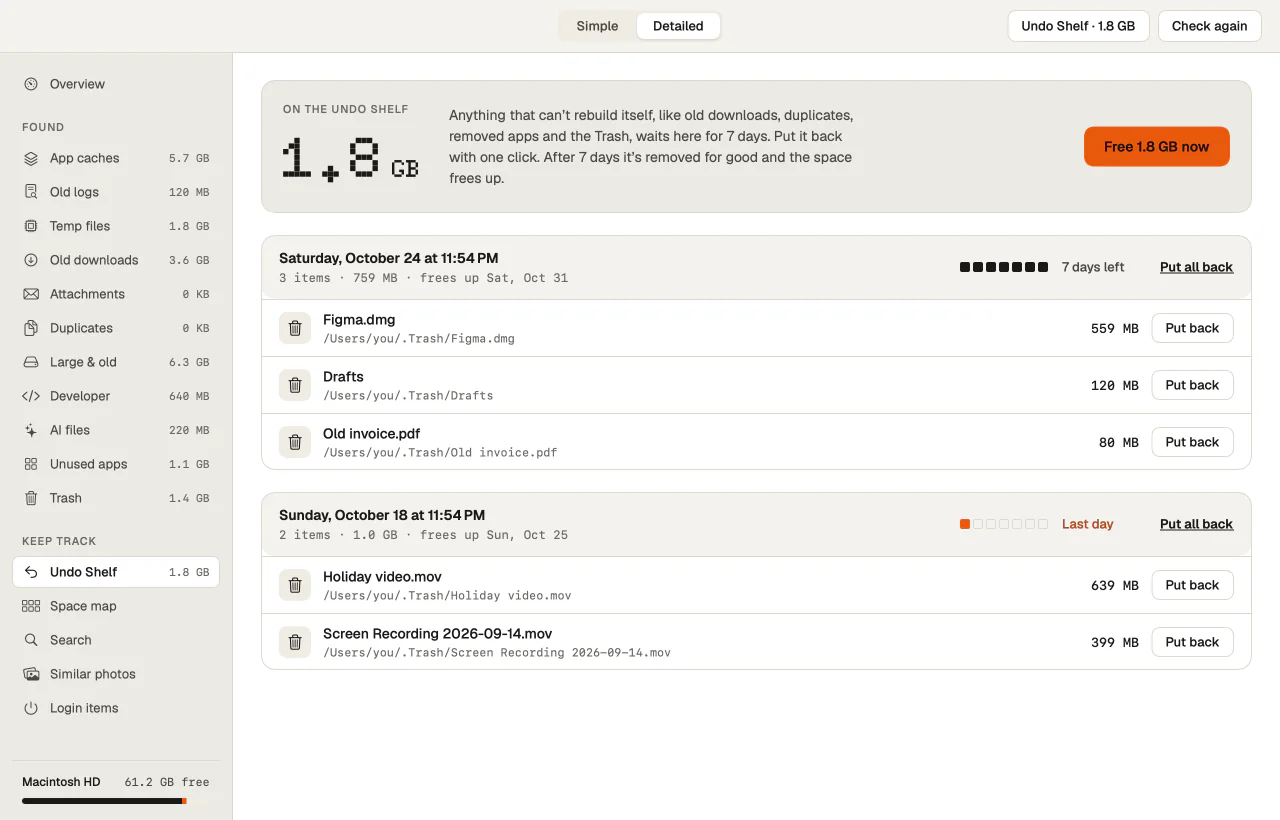
- Open Undo Shelf in the Detailed view’s sidebar, or press the Undo Shelf button at the top of the window, which appears with the shelf’s size whenever it holds something.
- Each cleanup is listed with its date, how many items it holds, their size, the day it frees up, and how many days are left.
- Put back returns one item, and Put all back returns a whole cleanup. A folder that no longer exists is made again on the way.
- If something with the same name has appeared in the meantime, nothing is overwritten: the returning item gets “(restored)” added to its name, or “(restored 2)” and so on.
When the space frees up
On the same disk, a move is just a rename, so shelving is instant and nothing is copied. It also means the files keep their space while they wait. A cleanup is removed for good, and its space freed, once its hold ends:
- Every check SiftMac runs, including the one when you open it, first empties cleanups whose hold has ended.
- A small helper, which macOS starts at login and every six hours, does the same while SiftMac is closed. SiftMac switches it on after the welcome; you can turn it off in Settings › Undo Shelf.
- Free … now, at the top of the shelf, empties everything on it at once, after asking. Nothing on it can be put back after that.
The hold is 7 days unless you choose 14 or 30 in Settings › Undo Shelf. Each cleanup keeps the date it was given when it was made, so a new setting applies from the next cleanup on.
2. Why a cleaner needs a way back
Most cleanup mistakes aren’t bugs. They’re fair guesses about a file that turned out to matter: an installer you meant to keep for another Mac, a duplicate that was really a backup, an app you open twice a year. Deleting outright turns a wrong guess into a loss.
SiftMac doesn’t ask you to trust its guesses. It asks one question of every item, whether it comes back, and gives anything that can’t a week to be missed. If you do need something, it returns to the folder it was in, with its name, without restoring a backup.
The shelf is also why the defaults can be simple. Old downloads and the Trash start ticked; apps, duplicates, large files and old AI chats start unticked. Either way, whatever can’t rebuild goes through the shelf before it’s gone.
3. What the Undo Shelf doesn’t do
- It doesn’t free space straight away. Shelved items keep their space until their cleanup expires or you empty the shelf. After each cleanup, SiftMac says how much is on the shelf and the date it frees up.
- It isn’t used for things that come back by themselves. App caches, old logs, leftover temp files and developer build folders are deleted when you clean, because the app or the next build makes them again. AI apps’ caches and installed updates are treated the same way.
- Some big downloads skip it too. Hugging Face and LM Studio models, macOS installers and iPhone update files are removed straight away; you get them back by downloading them again. Ollama models are removed with
ollama rm, simulators withxcrun simctl delete, and Docker’s images and build cache with Docker’s own prune commands. - After the hold, it’s gone. Expired cleanups are deleted, not moved to the Trash, and there’s no second chance after you empty the shelf.
- It isn’t a backup. It holds only what SiftMac removed. For anything else, Time Machine is still the way back.
- It only empties when something runs. With the helper off and SiftMac never opened, expired cleanups stay until the next check.
Questions
Does moving files to the Undo Shelf free up space?
Not yet. The files are moved, not deleted, so they keep their space until the cleanup’s hold ends. If you need the room now, press Free … now on the shelf, which removes everything on it for good.
How long does the Undo Shelf keep files?
7 days by default, or 14 or 30 if you change it in Settings › Undo Shelf. The countdown starts when you clean, and each cleanup shows its own days left and the date it frees up.
Where does Put back put a file?
In the folder it was removed from, whether that’s Downloads, Applications or one of an app’s Library folders. If the folder is gone, it’s made again. If a file with the same name is there now, the returning one gets “(restored)” in its name instead of replacing it.
Is the Undo Shelf the same as the Trash?
No. It’s SiftMac’s own folder, and emptying the Trash in Finder doesn’t touch it. When SiftMac cleans the Trash, what was in it goes onto the shelf too, so even those files get one more hold before they’re gone.
What if I never open SiftMac again?
The helper SiftMac turns on after the welcome empties expired cleanups at login and every six hours, so the space still comes back. If you turn the helper off, expired cleanups are emptied the next time SiftMac checks your Mac.
How SiftMac handles it. Every cleanup sorts itself: what rebuilds is deleted, and what can’t come back waits on the Undo Shelf for 7 days (14 or 30 if you choose), with Put back on every item. Scanning is free, so you can see which side of that line each item falls on before anything moves.
Download SiftMac · scanning is free, and so is your first 2 GB of cleaning · See how it works