SiftMac vs DaisyDisk: a map of your disk, or an answer for every item
DaisyDisk has been the Mac’s best-known disk map since 2008. It draws everything on your disk as rings you can click into, so the biggest folders stand out, and it leaves the deciding to you. Its own site argues against cleaner apps: find the large files you no longer need, and delete those. SiftMac draws a map too, but its focus is the deciding: for every item it finds, it tells you whether it comes back, and why.
- Choose DaisyDisk if you know your files and want the quickest way to see what’s big, on any disk, including external, network and cloud drives, on up to 5 Macs for $9.99.
- Choose SiftMac if you’d like each item explained before it goes, caches and developer leftovers sorted for you, and a 7-day way back for anything that can’t rebuild.
Side by side
DaisyDisk’s details are from daisydiskapp.com, its pricing page, FAQ and user guide, and its Mac App Store page, checked on 10 November 2026. If anything here about DaisyDisk is wrong, write to support@siftmac.com and I’ll correct it.
| SiftMac | DaisyDisk | |
|---|---|---|
| Website | siftmac.com | daisydiskapp.com |
| Made by | Mohit Nippanikar, a solo developer in India | Software Ambience Corp., since 2008 |
| How you pay | Once. $12 for the first 100 buyers, then $19 (2 Macs); $29 for 5 Macs. Free updates. | Once. $9.99 on the US Mac App Store. Its own store sells a lifetime licence for up to 5 personal Macs, with minor updates included |
| Free to try | Scan and review everything; your first 2 GB of cleaning is free | A free trial from its own site, after you give your email; some features stay locked until you buy. No trial on the App Store |
| Refund | 14 days | 30-day money-back guarantee from its own store |
| Where you get it | Direct download from siftmac.com, notarized by Apple | Mac App Store, or its own store (FastSpring) |
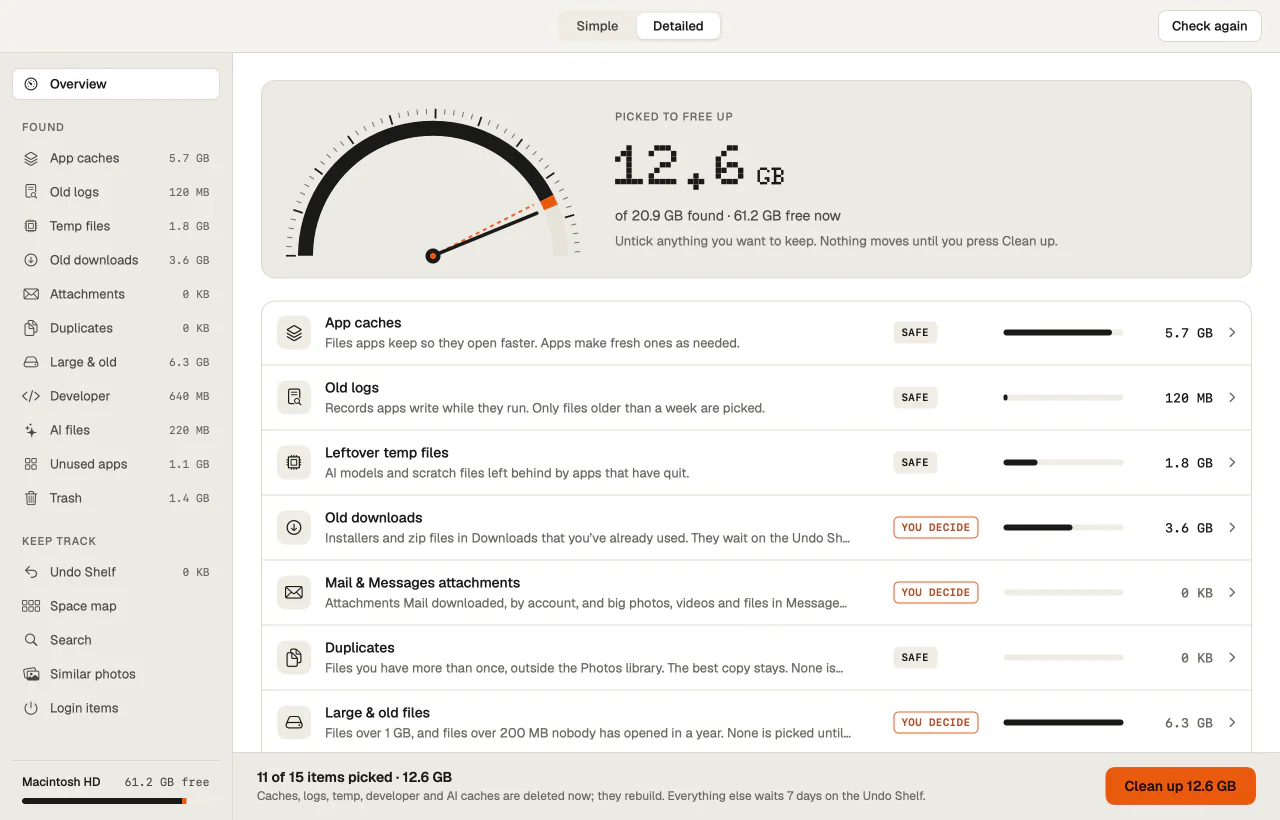
| What you see | Categories, each with a size, a verdict and a reason, plus a zoomable space map | A ring map of folders and files by size; you decide what each one is |
| Before anything moves | Every item gets a verdict (Safe, Rebuilds, You decide) and the reason in plain words | You drag items to the Collector, then click Delete; system folders are protected and won’t go in |
| Way back | What can’t rebuild waits on the Undo Shelf for 7 days (or 14 or 30); Put back returns it to where it was | 5 seconds to cancel, then files are deleted permanently, not moved to the Trash, and can’t be undeleted |
| Caches and app leftovers | Cleared by category, since they rebuild; apps you remove take their leftovers with them | Not its approach: its site says macOS cleans itself well and points you to large files instead |
| System Data | Broken down, with what’s safe to clear | Broken down; it also finds and removes local snapshots |
| Developer and AI tool files | Named and explained: Xcode DerivedData, simulators, node_modules, Docker, Claude Code, Cursor, Ollama | Shown on the map as folders, like everything else |
| Duplicates | Yes, and similar photos | No (their FAQ) |
| Counting | APFS clones and hard links counted once | Clones and hard links left out of the count |
| Network and data | No account and no usage data; it checks for updates and checks your licence | Collects and sends nothing, per its site |
| macOS | 14 or later, Apple silicon and Intel | 12 or later from the App Store; 10.13 or later from its own store |
| Languages | English | English and 13 more (App Store) |
What happens to what you delete
- DaisyDisk gives you 5 seconds to cancel, then deletes for good instead of using the Trash, so the space comes back at once. Its guide says those files can’t be “undeleted”, so a backup is your way back.
- SiftMac clears what rebuilds by itself (caches) straight away, and keeps everything else, like downloads, apps, duplicates and the Trash, on the Undo Shelf for 7 days. Put back returns an item to where it was.
What SiftMac is built around
One question, asked of every item before anything moves: does it come back?
- A verdict and a reason for everything. Caches rebuild on their own, so they’re marked Safe and cleared right away. Your downloads, apps, duplicates and the Trash don’t come back, so they’re marked You decide and wait 7 days on the Undo Shelf.
- Never what you’re using. Anything an open app or running program is using is left alone.
- Names, not just sizes. A 40 GB folder called
DerivedDataor.ollamameans little on a map. SiftMac says what it is and what happens if it goes. Try it on any folder at siftmac.com/check.
When DaisyDisk is the better fit
- You know what your files are and just want to see, fast, which ones are big.
- You want to look at other disks too: external and network drives, and cloud storage (Dropbox, Google Drive, OneDrive, Box).
- You have several Macs: one licence covers up to 5, for $9.99.
- You prefer the Mac App Store, or your Mac runs a macOS older than 14.
Using both
They work well together: DaisyDisk to see the whole disk at a glance, SiftMac for the parts a map can’t judge for you, like caches, System Data and developer leftovers.
Questions
Does DaisyDisk move deleted files to the Trash?
No. Its user guide says it deletes permanently, after a 5-second chance to cancel, so that the space is freed straight away, and that those files can’t be undeleted.
Does SiftMac have a disk map?
Yes, a zoomable space map, next to categories that each carry a verdict and a reason.
Is SiftMac a subscription?
No. You pay once: $12 for the first 100 buyers, then $19, for 2 Macs, or $29 for the Family pack on 5 Macs, with free updates and a 14-day refund.
Try SiftMac on your own Mac. Scan and review everything for free; your first 2 GB of cleaning is free too. Then it’s $12 once for the first 100 buyers, not a subscription, with a 14-day refund.
Download SiftMac · macOS 14 or later · Pricing